I recently got full time employment in an organization that depends on Microsoft Exchange for all of its email and scheduling needs. So, something that I investigated as soon as I could was how I could get my Rogers HTC Dream (a.k.a. the T-Mobile G1) and my Ubuntu Linux Laptop to connect to my new employer's MS Exchange server to receive and send emails, and to do my scheduling.
I was delightfully impressed with how incredibly easy it was to set up my new MS Exchange-based email account on my HTC dream. I just navigated to the Data Synchronization submenu in my phone's settings menu, clicked on "Microsoft Exchange", entered in my new email address and my password, waited while it communicated with the server, and then voila it finished!
Unfortunately it was not that easy on Ubuntu! It took me a week before I found any answers on the internet, but I finally got my MS Exchange email and calendar account set-up in Thunderbird. I first tried to use Ubuntu's pre-installed Evolution Mail to connect to MS Exchange, but alas it didn't work.
The solution came in the form of a Gateway program called DavMail. The principle of this program is that it mediates a (POP3/IMAP/Caldav) connection between your email client and the MS Exchange server in a way that makes both parties happy. Although I haven't tried this with a program other than Thunderbird, it should in theory work alright.
Once you've downloaded and installed DavMail using the link above, make sure that you have Sun Java version 6 installed. To do so, type in sudo apt-get install sun-java6-bin. After you're finished, start up DavMail by navigating through the following Gnome menu items: Applications > Internet > Davmail. A yellow circular icon will appear in the Gnome system tray indicating that DavMail has started up. Right-click on that icon, then click on settings, and then input your organizations Outlook Web Access (OWA) address. It may be something like https://mail.domain.org/owa. Take note of the local ports that it's opening up for various services (e.g. POP3/IMAP/Caldav) to see what ports your programs will need to use to access those services.
The next step for me was enabling IMAP access to my MS Exchange email. You can choose POP3 if you like, but IMAP will ensure that you have access to all the email folders that you regularly access at work. The DavMail folks already set up a nice tutorial on how to set-up Thunderbird with IMAP, so go through the steps they've already posted (warning, their screenshots are in French. This shouldn't be a problem though, as their instructions are in English!). Once you've completed those steps, go into your Thunderbird Account Settings for your new account and make sure that the port number it uses for accessing your email through IMAP is the same as the DavMail setting (the default is 1143).
Next item of business is to set up your MS Exchange calendar through Thunderbird's Lightning extension. Again, the DavMail folks have covered the steps to do these so do read what they've posted. Now you should have access to your email and calendar from Thunderbird at home!
The caveat to all of this is that, as a Gateway program, DavMail has to be running for you to communicate with your employer's MS Exchange server. So, be sure to start up DavMail if you want to check your MS Exchange email/calendar. It would be nice if this functionality was native in Thunderbird, but oh well. At least these steps allow you to use Thunderbird at all!
Showing posts with label Thunderbird. Show all posts
Showing posts with label Thunderbird. Show all posts
Wednesday, March 17, 2010

Monday, December 14, 2009
Thunderbird 3 - Nice and Polished!
Many years ago I used MS Outlook to organize my many emails, my calendar and my contacts. I liked Outlook alright until I finally got sick of how resource intensive it felt after years of use. I'm talking about the feeling you get when you hear the frantic clicking of your computer accessing stuff on your hard drive and executing processes like a type A personality on cocaine. So I felt the need for a change!
I discovered Mozilla Thunderbird and I never looked back. Thunderbird had (and still has) about all I can ask for. It loads fast, handles all sorts of email accounts (POP, IMAP, Gmail, Hotmail, etc), has a calendar plugin you can use called Lightning, and has BLAZING fast email search functionality!
The email search functionality of Thunderbird is perhaps my favourite feature. I actively use 3 email accounts and so accumulate A LOT of email from day to day! This is no matter for thunderbird, as it quietly indexes each and every email as they come in (or after you import your emails from another source). I most often use the 'Subject or Sender' search when looking for emails. Want to find an email? Type in a word or more from the subject, or type in the name of the person whosent it and WHAM, it shows you all the search results lickety split!
So, when I read recently that Mozilla came out with Thunderbird 3, I absolutely had to check it out!

For those of you who have seen Thunderbird before, you'll see that apart from some icon style changes, Thunderbird 3 introduces tabs to its email interface. I wasn't exactly waiting with baited breath for this feature, but you have to admit that Email clients might as well have tabbed interfaces now that all browsers have them.

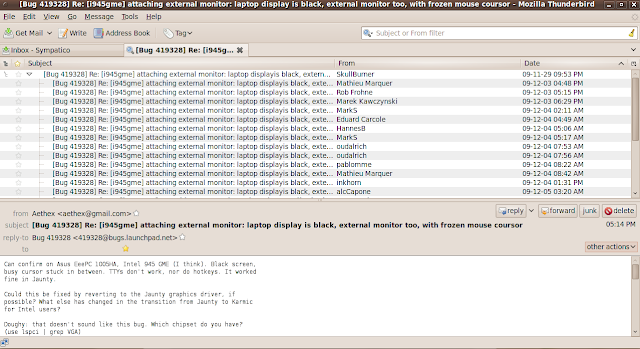
Finally, I'm happy to report that searching for emails in Thunderbird 3 is just as good as it has ever been. There is at least one search type that I do not understand ('Recipient filter'.... How is that different from a 'To or CC filter'?) but that's okay because I rarely use anything other the 'Subject or From filter' search anyway.
(1) echo "deb http://switch.dl.sourceforge.net/project/ubuntuzilla/apt all main" | sudo tee -a /etc/apt/sources.list > /dev/null
(2) sudo apt-get update
(3) sudo apt-get install ubuntuzilla
(4) ubuntuzilla.py -a install -p thunderbird
Most of all, enjoy!
I discovered Mozilla Thunderbird and I never looked back. Thunderbird had (and still has) about all I can ask for. It loads fast, handles all sorts of email accounts (POP, IMAP, Gmail, Hotmail, etc), has a calendar plugin you can use called Lightning, and has BLAZING fast email search functionality!
The email search functionality of Thunderbird is perhaps my favourite feature. I actively use 3 email accounts and so accumulate A LOT of email from day to day! This is no matter for thunderbird, as it quietly indexes each and every email as they come in (or after you import your emails from another source). I most often use the 'Subject or Sender' search when looking for emails. Want to find an email? Type in a word or more from the subject, or type in the name of the person whosent it and WHAM, it shows you all the search results lickety split!
So, when I read recently that Mozilla came out with Thunderbird 3, I absolutely had to check it out!

Thunderbird 3 Screenshot
For those of you who have seen Thunderbird before, you'll see that apart from some icon style changes, Thunderbird 3 introduces tabs to its email interface. I wasn't exactly waiting with baited breath for this feature, but you have to admit that Email clients might as well have tabbed interfaces now that all browsers have them.

New email opened in a tab
Want to see your email in a new window? Just click on 'other actions' then 'open in new window'. Another really cool feature you'll spot in the 'other actions' menu is 'show in conversation'. This threads all emails bearing the same subject line as part of one tree structure, where each reply to an email in that conversation creates its own branch.

'show in conversation' view. Google GMail meets Mozilla Thunderbird?
I think that the 'conversation' view is a much needed addition to Thunderbird's complement of tools to organize your email.
Finally, I'm happy to report that searching for emails in Thunderbird 3 is just as good as it has ever been. There is at least one search type that I do not understand ('Recipient filter'.... How is that different from a 'To or CC filter'?) but that's okay because I rarely use anything other the 'Subject or From filter' search anyway.
So, if you're using Windows or Mac, go here, or if you're using Ubuntu, paste the following 4 lines (taken from the Ubuntuzilla project site) into your terminal:
(1) echo "deb http://switch.dl.sourceforge.net/project/ubuntuzilla/apt all main" | sudo tee -a /etc/apt/sources.list > /dev/null
(2) sudo apt-get update
(3) sudo apt-get install ubuntuzilla
(4) ubuntuzilla.py -a install -p thunderbird
Most of all, enjoy!
Subscribe to:
Posts (Atom)


 Posts
Posts


